Documents
DOCX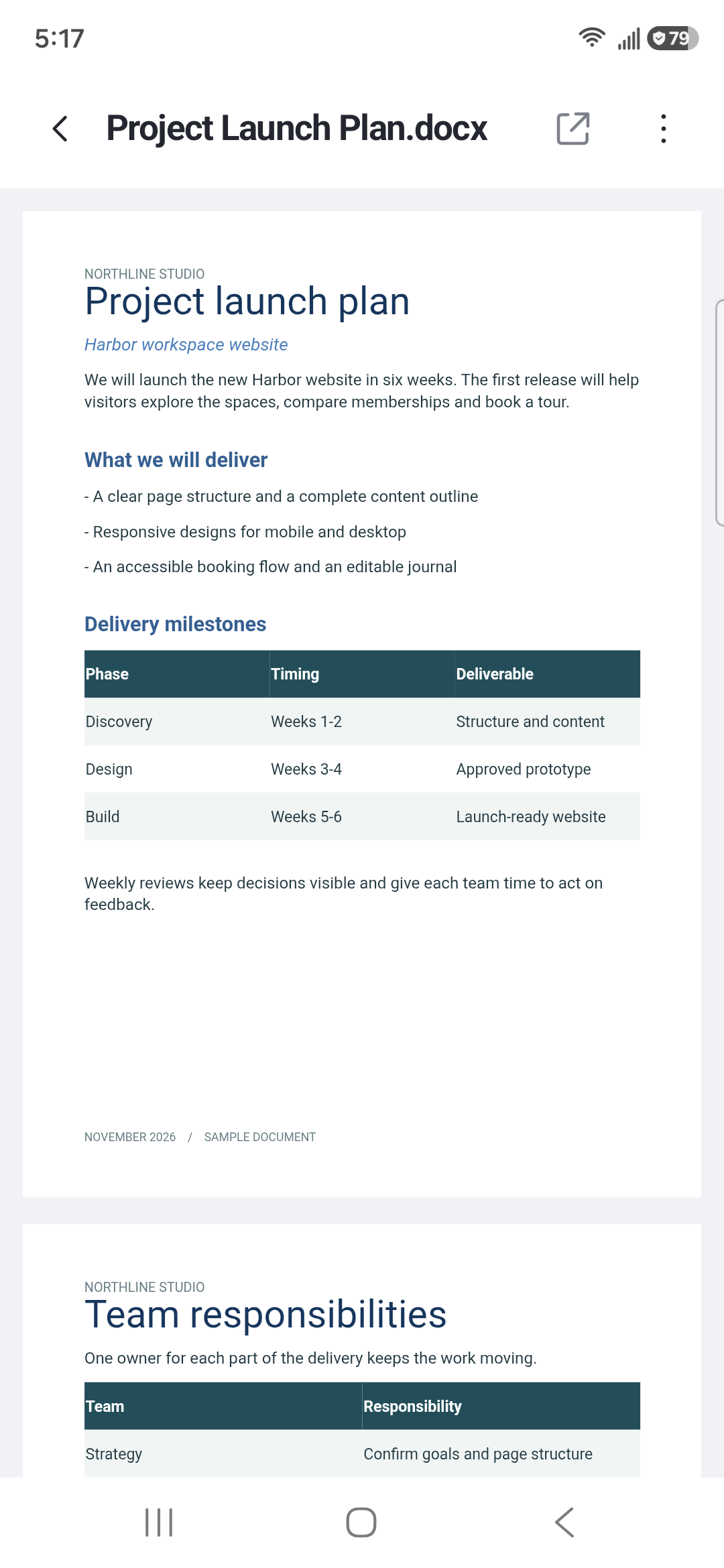
Read plans, notes and the details in between.
QUICK PDF READER & TOOLS
Read your everyday documents. Turn paper and photos into PDFs. Keep what matters close.
Made for Android. Built around your files.
The files you use.
In one familiar place.
 PDF
 DOCX
 XLSX
 PPTX
 TXT
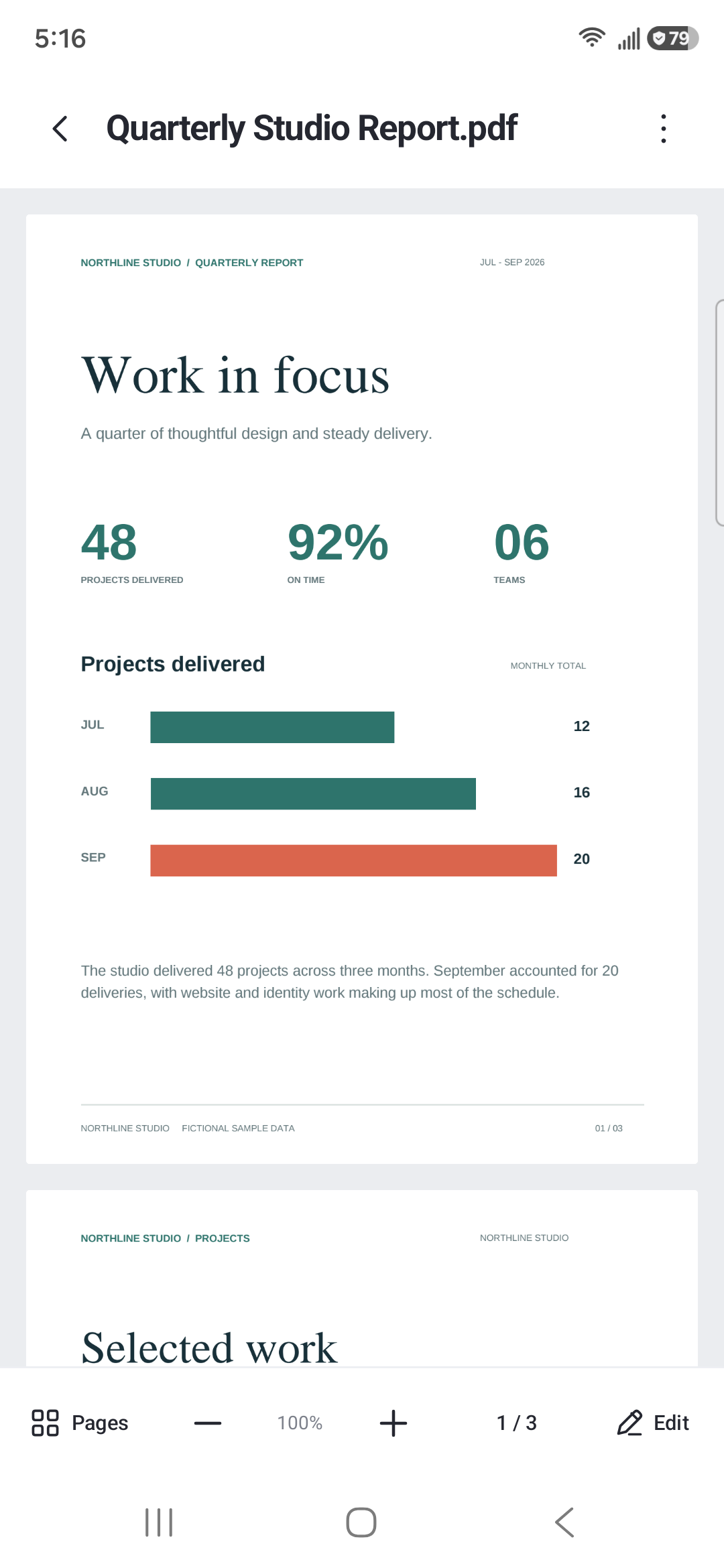
01 / OPEN. READ. KEEP GOING.
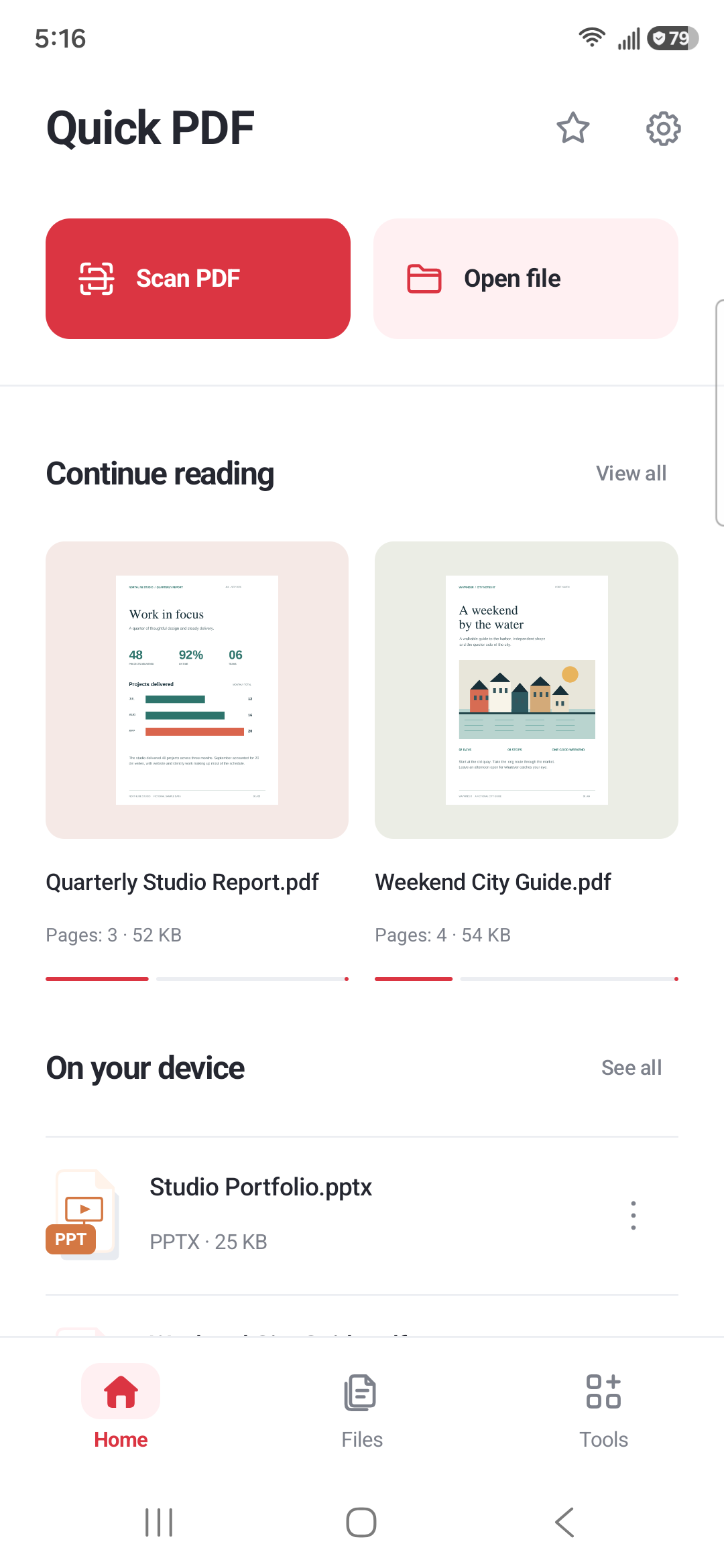
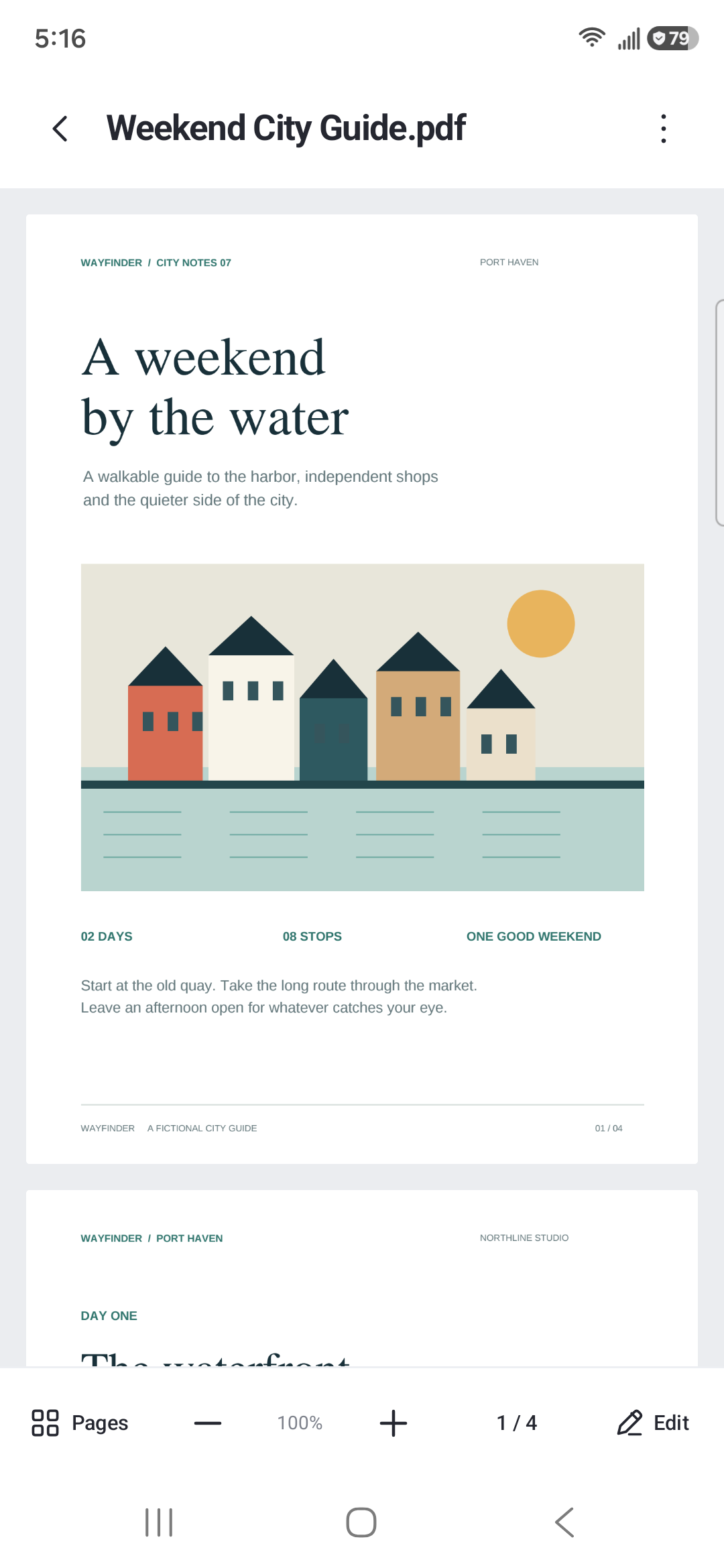
From a weekend guide to a work report, make room for the documents that matter to you.
Zoom in, move around the page and choose a page number.
Browse page thumbnails. Reorder or remove pages and save a new PDF.
Return to recent documents and keep favorites within reach.
02 / BEYOND THE PDF
Open the documents behind your day.
Read DOCX, XLSX and PPTX files inside the app.
Read plans, notes and the details in between.
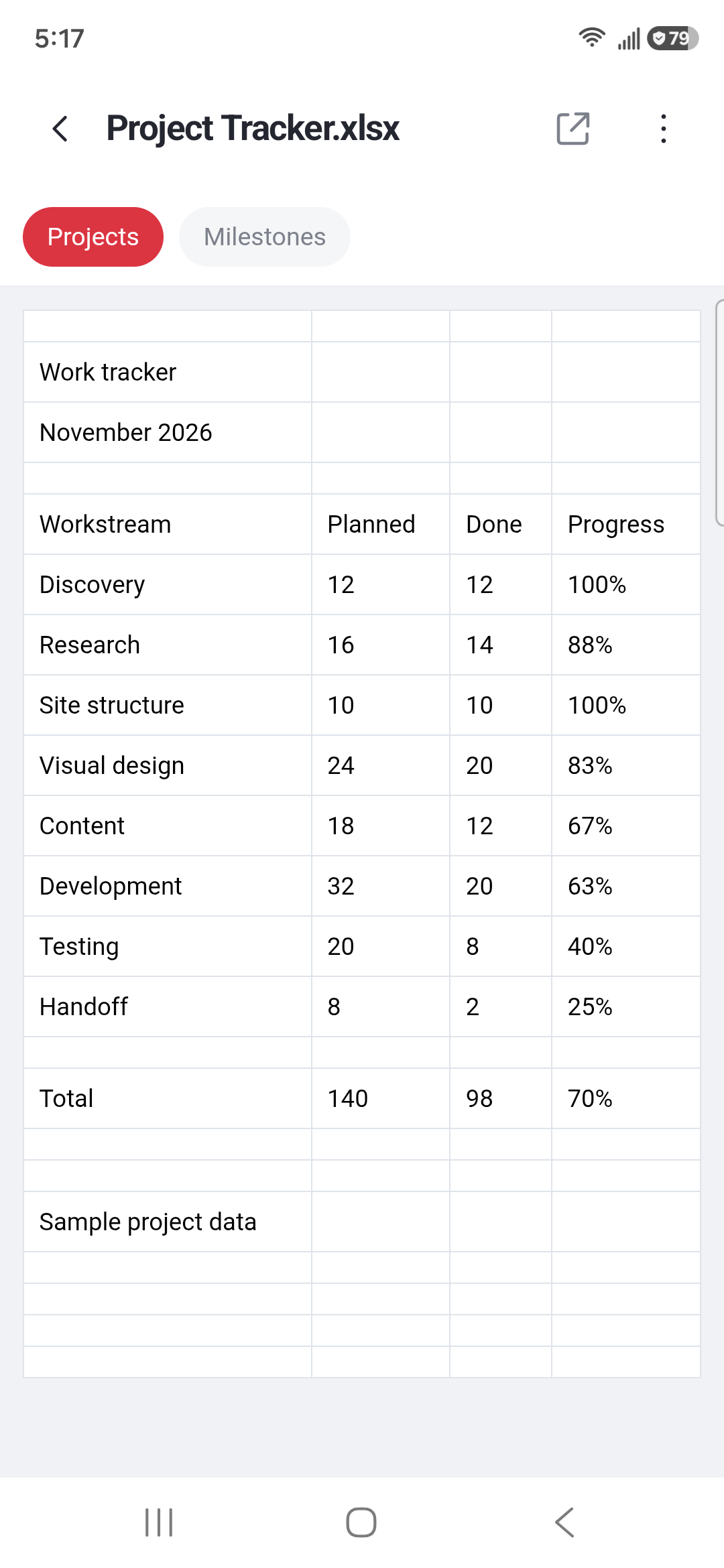
Review tables and switch between worksheets.
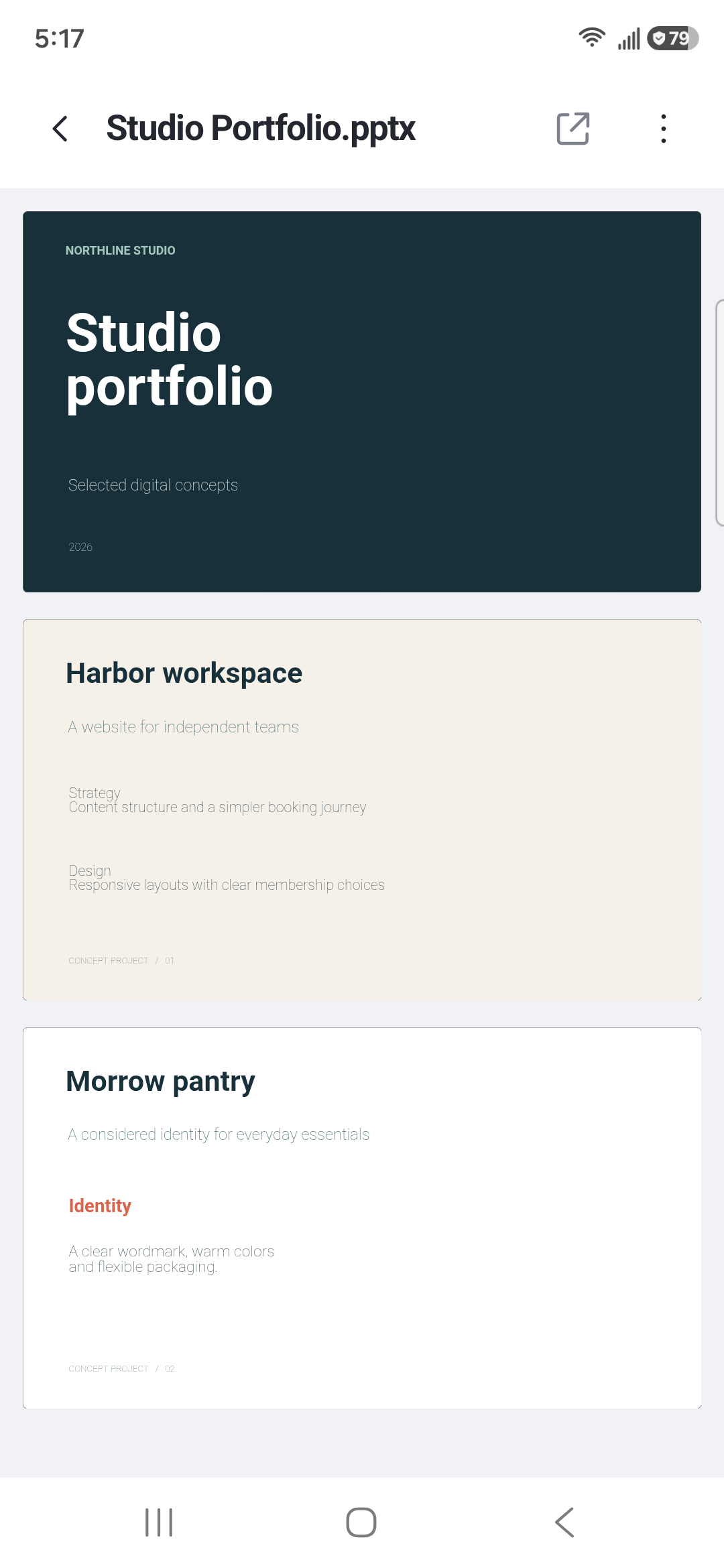
Keep your next presentation ready to view.
Text notes, too. Open TXT files and adjust the reading size. See format details
03 / MAKE IT A PDF

Capture pages with your camera and save them as a PDF.

Choose your photos, arrange the order and make a PDF.

Bring several PDFs together in the order you choose.

Pick the pages you need and save them in a new file.

Add a password to a PDF and save a protected copy.

Use the current password to remove PDF protection.
YOUR FILES. CLEAR CHOICES.
Document reading and PDF tools work on your device. Firebase Analytics and Crashlytics process technical information to understand app use and diagnose problems.
Read the privacy policyA FEW USEFUL ANSWERS
The everyday details.
PDF, DOCX, XLSX, PPTX and TXT viewing works with files saved on your device. A file stored with a cloud provider may need to be downloaded first.
DOCX, XLSX and PPTX open inside Quick PDF for viewing. Older DOC, XLS and PPT files open in a compatible app installed on your device. Quick PDF does not edit Office document contents.
File access lets Quick PDF discover and manage supported documents on your device. You can also choose individual files with Android's file picker. Renaming or deleting a file can affect the actual file.
New PDFs are saved in the app's document folder. Use “Save a copy to device…” to export an important file to a location you choose, especially before clearing app storage or uninstalling.
Yes, with its current password. To remove protection, use Unlock PDF and enter that password.
SUPPORT & PRIVACY
For help with the app or a privacy request.